Showing posts with label Excel. Show all posts

Friday, February 6, 2009

Instructions For First Post


How to get images on Excel


First you go to google find the image you want right click it and press copy. Then you open up exel right click where you want the image and click paste.

This is what you should have

How to Find Slope on Microsoft Excel


How to find slope using Microsoft Excel
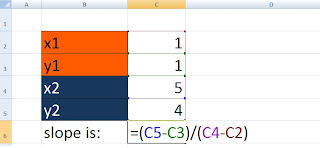
-First you have to make your boxes
*you can colour them to make it easier for you to see*
-Then you have to write in the points and the numbers for the coordinates.
-In the equals spot you have to right in =( then click on the y2 spot - x2) / ( then click on the y1-x1) hit enter and you will have your slope

How to create a comment box using Excel


How to make a comment on Microsoft Excel is quick, simple, and very useful. First you right click on a corner of a box. Then a list will appear and you click on "insert comment". A comment box will show up with a little red triangle in the corner. In the box you can put whatever you want. Most comments are used to explain what the box is used for. For example, if you have a formula in excel to calculate the perimeter of a rectangle, you can put comments on the boxes telling you where you would put the lengths and widths of the rectangle. After, if you want to read the comment you can drag your mouse over the red triangle and the message will appear. Here is a picture of a comment box on Excel.

Using Excel to Determine the Area of a 2-Dimensional Rectangle

Okay, so you already have Microsoft Excel open! Now let's say the question you are trying to solve is " find the area of a 2 dimentional rectangle. So here is a simple was to determine the area of the rectangle without ripping your hair out!

So open up Excel and create a title ( ie: RECTANGLES) then go and find a picture of the object ( rectangle NOT square) that you are working with.

Then in "A3" ( Column numbers and letters will vary) type in the word " Length". In " A4" type in the word "Width" and finally in "A5" type the word " Area". Done that? Perfect!

Now, beside the word "length" in column "B3" type in a number ( lets use 5 for an example), and beside the word "width" choose another number, or the same, whatever you would like ( lets use 7 for an example). Alright, you are now ready to figure out the area!

So now, in column beside the word " area", type in "=(" then double click on column B3 and it will appear after the "(", then add in a "*" symbol and then double click on column B4, close off the formula with a ")".

The end product of the formula should look like this : =(B3*B4)

If done correctly, the answer will appear!